Your agent’s superpowers, step by step
Give it knowledge, a recipe and tools
The model does not know your company or process by default. A well-prepared setup lets it work to your rules. Settings and plugin selection are part of the task, not an afterthought.
Plugin = a capability bundle
It can combine skills, apps and supporting materials. Not every plugin includes all of them: a skills-only bundle can be useful too. A skill describes the method, an app provides a tool, and the Company Brain supplies company facts.
1. Context: what the agent needs to know
Company brief, current offer and a real photo. Point to sources in the task; account memory does not replace an up-to-date Company Brain.
Review personalisation and memory2. Skill: how to do the task
A recipe: read the brief, check sources, prepare variants and review the result. It may include instructions, scripts and resources. It does not train a new model.
See the catalogue and skills3. Apps: what it can use
A connection provides specific access to a service, such as a drive or design tool. Installing a plugin does not sign you in or authorise every operation.
Review connections and permissions4. Review: how to recognise a good result
Run a small test on a copy of your data. Check the output file, sources and brief. Approve sending or publishing separately.
Go to the plugin test
First test: one ad, one workflow
Supply the Company Brain and photo. Ask an advertising skill for three copy options and a visual brief. Check it used your service, voice and actual photo without inventing prices. Then ask an available tool for the visual. Without that tool, the result is a brief for later work, not a pretend finished ad.
Open the folder exercise and download templatesDefinition sources: OpenAI Plugins · OpenAI Skills (the deprecated repository now points to Plugins).
Lesson 09 - the basics
A plugin is your packaged way of working
The same plugin directory serves ChatGPT and Codex. In ChatGPT a plugin helps with documents, mail and reports; in Codex it helps with code, repositories and technical tasks.
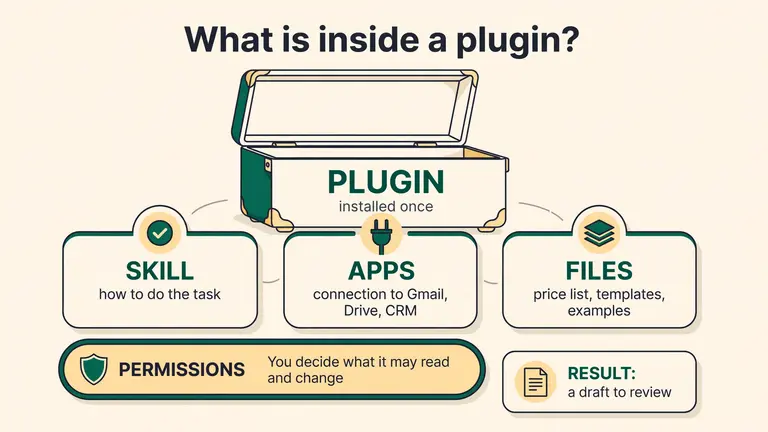
Skill
The recipe for a task. It says which steps to take, what format to return and what to check.
“The quote is 2 pages, prices come from the price list, list any missing data at the end.”
Apps
The key to your tools. A connection lets ChatGPT or Codex read mail, a drive or a CRM.
Gmail, Google Drive, Slack, GitHub - each app signed in and authorised separately.
Reference files
Company knowledge the skill refers to: a price list, a template, a model document.
“Pricing 2026.xlsx”, “Quote template.docx”, two good quotes from last quarter.
Permissions sit on top of everything: you or your administrator decide what the plugin may read and what it may change. Saving a skill never grants access to email or files.
Which piece do you need?
- I explain what our report looks like every single time.
- Write a skill.
- I paste emails and drive files into the chat.
- Connect an app.
- The whole team should do the same task the same way.
- Package the skill, apps and files as a plugin.
- The report should be created every Monday on its own.
- Add a scheduled task (lesson 12) - a plugin does not start anything on its own.
Set up a plugin correctly
Six steps, in this order. Most problems in companies come from skipping step 4 or 5.
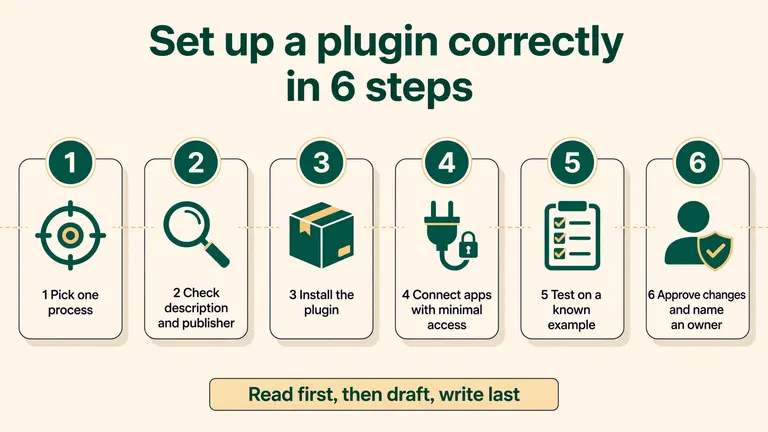
- 1
Pick one process
Start with a task that repeats every week and has a clear result, such as a quote or a report.
✓ You can describe a “good result” in three sentences.
- 2
Check the description and publisher
In the plugin directory, read who published it, which skills and apps it contains and whether your plan includes it.
✓ You know which data the plugin may read and what it may change.
- 3
Install the plugin
Installing adds the package to your account or workspace. In a company the administrator often makes this decision.
✓ Installing does not grant data access yet - that is a separate step.
- 4
Connect apps with minimal access
Sign in to each app and grant only the permissions the process needs. Read access is enough to start.
✓ The plugin sees only the folders and mailboxes the task needs.
- 5
Test on a known example
Give it a task whose correct answer you know, such as last month's quote. Compare the result with the original.
✓ Numbers, names and dates match the source.
- 6
Approve changes and name an owner
A person approves sending an email, writing to the CRM or editing a file. One person owns updates to the skill and files.
✓ It is clear who updates the plugin when the price list or process changes.
Rule of thumb: read first, then draft, write last.
Availability depends on your plan, region, workspace and administrator configuration.
Your first prompt with a plugin
Use the [name] plugin to prepare a [quote / report].
Sources: [Gmail thread / Drive file].
First list the data you are using and what is missing.
Then prepare a draft. Do not send or save anything without my approval.
What a plugin can do for each team
Each example is one plugin: apps for access, a skill for the procedure and a draft as the result. Measure the time saved on your own tasks.
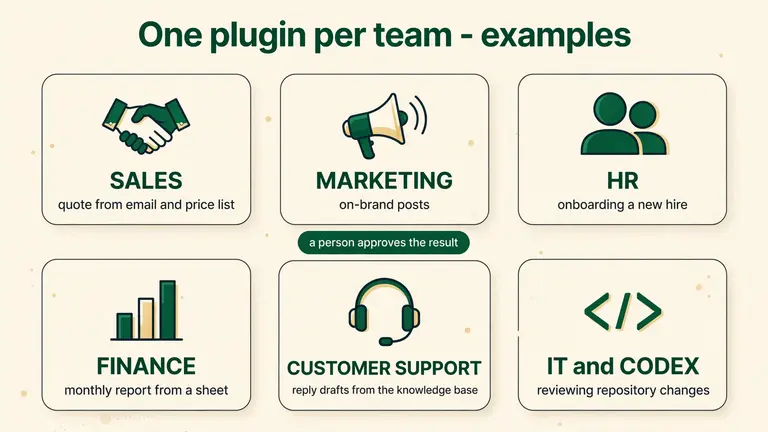
Sales
- Apps
- Gmail, Drive, CRM
- Skill
- Quote: scope from the email, prices from the price list, 3 similar projects.
- Result
- A quote draft and a list of questions for the client.
Marketing
- Apps
- Drive, Canva
- Skill
- Post: tone from the brand book, length per channel, banned phrases.
- Result
- Three post variants to choose from.
HR
- Apps
- Drive, Kalendarz
- Skill
- Onboarding: a first-week plan from policies and the contact list.
- Result
- A week plan and a welcome email draft.
Finance
- Apps
- Arkusze, Drive
- Skill
- Report: the same metrics every month, comparison with targets, notes on variances.
- Result
- A report with a table - accounting checks the numbers.
Customer support
- Apps
- Helpdesk, baza wiedzy
- Skill
- Reply: based only on the knowledge base, polite tone, link to the source.
- Result
- A reply draft the agent edits and sends.
IT and Codex
- Apps
- GitHub
- Skill
- Change review: team rules, tests to run, comment format.
- Result
- A list of comments on the pull request; a person merges.
Four common mistakes
- Installing five plugins at once. Start with one process and one plugin.
- Granting full access “just in case”. Grant only what the task requires.
- Writing a vague skill (“make a good quote”). Describe steps, format and criteria.
- Not updating files. An old price list in the plugin produces old prices in quotes.
Your app - Settings
Settings and the plugin list
In short ↳Settings has two parts: a list of areas on the left (account, personalisation, memory, data) and what you picked on the right. Plugins give the app new abilities.
Where to find it: Settings → Integrations → Plugins
Select the screenshot to enlarge it.
What you see on screen
- 1
Personalisation
Tell ChatGPT who you are and how to write to you: tone, role, standing rules. Enter it once instead of in every prompt.
- 2
Memory
What the app remembers about you. Review and delete entries, especially on a company account.
- 3
Usage and billing
Check how much of your limit you have used. Look here when work suddenly slows or access runs out.
- 4
Data controls
You decide what happens to your conversations. Details in lesson 18 (GDPR).
- 5
Tabs: Plugins, Apps, MCP, Skills
The numbers beside the tabs (here 67, 42, 4, 82) come from the course author's account. Yours will differ.
- 6
Browse catalogue and Add
The catalogue shows ready-made plugins. Add loads one of your own.
- 7
Toggle beside a plugin
Turns a plugin on or off. Switch off the ones you do not use so they do not distract the model.
How to use it - in plain words
Start with Personalisation: enter your role, industry and answer style. Test a short example to check whether those instructions are applied.
Only then visit Plugins. Enable only what you really need and check what each plugin can access.
Try it on your account
Open Settings → Personalisation and write three sentences about yourself. Then open Plugins and see which are enabled.
Your app - Apps
The Apps tab
In short ↳Apps connect ChatGPT to outside services, e.g. for design, video, research or sites. It is a different list from Plugins, so do not look for both in one place.
Where to find it: Settings → Integrations → Plugins → Apps
Select the screenshot to enlarge it.
What you see on screen
- 1
Apps tab
Next to Plugins, MCP servers and Skills. Each tab is its own list.
- 2
Name and short description
The description says what the service is for. Read it before you enable the app.
- 3
Toggle
An enabled app can receive your prompts and data. Switch off everything you do not need.
- 4
Browse catalogue
Find more apps here. The list in the screenshot is a selection from the author's account.
How to use it - in plain words
Enable an app only when you have a concrete task, e.g. to generate a video or look up papers.
In a company, ask first whether the service is allowed. Some apps send data outside ChatGPT, so do not put customer data in without approval.
Try it on your account
Open the Apps tab, read the descriptions of three entries and switch off the ones you do not need.
Your app - Customise
The plugin catalogue: what to install
In short ↳A separate 'Customise' screen. On the left is what you have installed, on the right a catalogue grouped by topic. In this screenshot the plus adds a plugin; the three-dot menu offers more options. Confirm installation in the installed list.
Where to find it: Left bar → Customise → Plugins
Select the screenshot to enlarge it.
What you see on screen
- 1
Plugins and Skills
Two tabs of one screen. A plugin is a bundle that may include skills and app connections. A skill contains task instructions, sometimes scripts and resources; it may be supplied or custom.
- 2
Installed
Everything you already use in one place. Review the list now and then and remove what you do not need.
- 3
Search plugins
Type the name of a service, e.g. Canva or Notion. Faster than scrolling the catalogue.
- 4
Add
Load your own plugin or add a new one. Next to it are refresh and settings.
- 5
Topic groups
The catalogue groups plugins, e.g. Small business, Productivity, Communication. The arrow opens the whole group.
- 6
Plus: add a plugin
After you click, you will see what access the plugin asks for. Read it before you approve.
- 7
Three dots: already installed
Where you see three dots instead of a plus, the plugin is already yours (on the screenshot e.g. Canva and Figma).
How to use it - in plain words
Start with 2-3 plugins for things you do weekly: documents, graphics, notes. Add more only when you feel the gap.
Do not install everything 'just in case'. Every plugin is extra access to your data, and a long list distracts the model.
Try it on your account
Open Customise → Plugins, search for one service you use at work and read what access it requests before installing anything.
Lesson 09 - apps inside plugins
Apps a plugin can connect
You don't have to abandon Slack, Gmail or Excel. Safest pattern: minimal access, explicit permissions, audit logs and approvals for actions that mutate data or send messages.
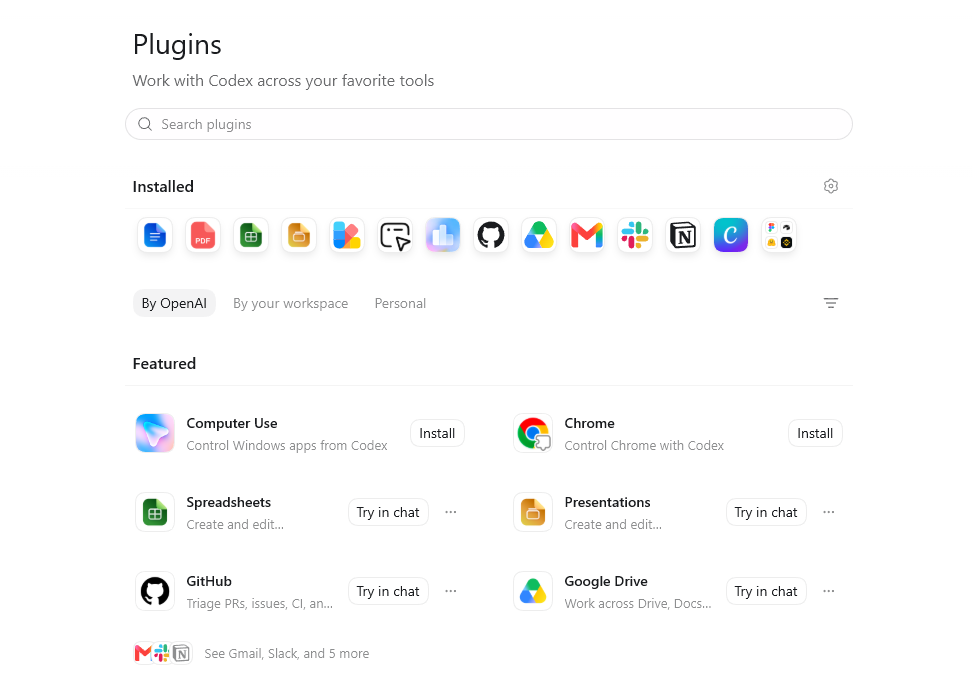
Tools and integrations catalog - before enabling, review what it does, what data it touches, its permissions and whether it's available on your plan.
Productivity
Connectors and tools can help with documents, spreadsheets, presentations and PDFs. Scope depends on the integration: sometimes AI just reads data, sometimes it drafts, sometimes it acts after your approval.
Documents (Google Docs / Word)
Creates and edits documents from the chat. Say "draft a 2-page offer" and you get a draft to review.
Reads multi-page PDFs (contracts, reports, invoices), pulls key points and generates new PDFs.
Spreadsheets (Excel / Sheets)
Analyzes sheets, adds formulas, pivots and charts. Describe the goal in plain words and check the formulas on a few rows.
Presentations
ChatGPT Work produces the outline, slide copy, charts and speaker notes, and can hand the result over as a downloadable deck file for you to import. It can read an existing Google Slides deck through the Google Drive connector. Do not assume it will write changes straight into that Slides file, or handle PowerPoint natively on desktop - that depends on your configuration, and some such options are still in beta.
Template Creator
Creates and stores company templates (offers, reports, emails) so ChatGPT Work uses them the same way every time.
Chrome (Computer Use)
Drives Chrome like a human: clicks, fills forms and collects data from sites without an official API. You approve every form submission.
Creative and design
Marketing, social and sales collateral. ChatGPT Work connects to graphics apps and generators, and you pick and refine the proposals.
Canva
Finds, creates and edits Canva designs: social posts, decks, posters - on-brand.
Figma
Reviews mockups, extracts copy, exports assets - handy for product and marketing teams.
Picsart Gen.AI
Generates images, video and audio for campaigns - quick A/B variants.
Fal
Fast image generation for banners, thumbnails and infographics.
BioRender
Scientific and educational illustrations on demand (R&D, education, healthcare).
Shutterstock
Finds stock photos without leaving the chat and drops them into documents.
Communication
Your team lives in Slack, Gmail or Teams. AI can summarize, draft and help with follow-ups if the admin enables the right access.
Gmail
Reads the inbox, organises messages and drafts replies in your voice. You send them yourself.
Slack
Summarizes channels and threads, drafts replies and reports. Use scheduled tasks for regular sending.
Outlook Email
Same as Gmail, for Microsoft 365 - inbox triage and auto-drafting.
Microsoft Teams
Summarizes meetings, creates follow-ups with concrete tasks and deadlines.
Granola
Brings meeting context - ChatGPT Work knows what was agreed and writes emails / tasks from it.
Fireflies
Searches meeting transcripts so you can quickly check who promised what and when.
Data and analytics
Sales, marketing and product data can be exposed to AI via secure connectors or API. Read and analyze first, automate writes later.
Data Analytics
Connects to your data and explains it in plain language: "why did March sales drop?"
Semrush
Keyword, traffic and competitor research collected in one report.
PostHog
Product analytics: funnels, retention, feature flags.
Windsor.ai
Pulls data from many sources (ads, CRM, analytics) into one place. Useful for marketing.
Mixpanel
Ask product metrics in plain language instead of building queries by hand.
Amplitude
Cohorts, user paths, A/B hypotheses - insights, not raw charts.
Files, drives and code
AI only accesses drives, repos and knowledge bases you explicitly connect - and only within the user or workspace permissions.
Google Drive
Finds files on the company Drive, reads them, summarizes, combines content from many docs into one report.
Notion
Reads and updates a Notion knowledge base - docs, SOPs, product decisions.
GitHub
Reviews issues, pull requests and CI. Codex reviews code and suggests fixes; a person merges.
What if my app isn't on the list?
You can connect your own tool (a database, ERP or in-house app) through MCP, an open standard for linking AI to apps. This is a job for IT: it needs setup, tests, scoped permissions and a security review. Connect only what the process really needs.
Lesson 09 - skills
Skills - your company knowledge inside AI
An app gives access to a tool, and a skill gives the procedure. Packaged together as a plugin, they make an assistant that knows how your company works.
1. Teach once
You create a skill - a short description: "our report looks like this, we use these words, we keep this structure".
2. ChatGPT or Codex applies it
When you give a matching task, the model picks the skill based on its description. You can also name the skill in your prompt.
3. The team benefits
Share and install the skill in the team environment. Test it on a known example and assign an owner for updates.
---
name: sales-offer
description: Use when a quote for a new B2B client is needed.
---

## Steps
1. Open the "Offer 2026" template on Google Drive.
2. Take client data from the CRM (HubSpot).
3. Pick 3 projects from the client's industry.
4. Prices only from the "Pricing 2026" sheet.
5. Signature: account owner (check in CRM).

## Before you hand it over
- List any missing data. Do not guess prices.
- Save the draft in the client folder on Drive.
- Post the link to Slack #sales for approval.
  Do not send the quote to the client.
This is not code. A skill is a plain text file, SKILL.md. At the top it has a name and a description of when to use it; below come the steps and rules.
The description decides when the model reaches for the skill, so make it specific. The “Before you hand it over” section says what to check and what not to do. Measure time and revisions on your own examples.
The point: you can write a skill yourself, no developer needed. If you can explain the process to a new colleague, you can write a skill.
Ideas for your first skills
You will find ready-made skills in the plugin directory too, but the most valuable ones describe your own process. Start with one of these.
Brand consistency
Colours, fonts, tone and banned phrases from the brand book. Every post, quote and deck looks like it came from one company.
Sales quote
The quote structure, where prices come from, how many projects to show and what to ask when data is missing.
Procedure or SOP
Walks you through a document step by step: it asks questions and turns your answers into a full draft.
Meeting notes
Always the same layout: decisions, tasks with owner and date, open issues. Nothing gets lost between meetings.
Competitor ad analysis
The same criteria for every ad: promise, audience, call to action. Findings in a single table.
Code review in Codex
Team rules, tests to run and comment format. Codex checks changes the same way on every pull request.
Apps + skills + files = your company plugin. Apps give access to tools, skills describe procedures and files provide knowledge. Together they make an assistant that knows your standards. Decisions and sending still belong to a person.
Lesson 09 - examples
Plugins and Skills - from a connection to a repeatable process
Three ready recipes. Each shows which apps to connect, what the skill does, what you get and what happens when data is missing.
1. Plugin package
A plugin is a packaged set of capabilities and connections you install once. It is not a prompt you retype.
2. Connecting the app
Inside the plugin you connect the actual apps (mail, calendar, drive, sheets) and grant them permissions. No connection, no access.
3. Procedure in a Skill
A Skill stores instructions: which sources to use, what steps to follow and what to check. It does not grant app access or schedule recurring runs by itself.
Availability depends on your plan, region, workspace and administrator configuration.
Quote: Gmail + Drive
Sources
- Gmail - the thread with the client's question and requirements
- Drive - the price list and the quote template
Steps
- 1.The agent reads the thread and pulls out the scope and the client's questions.
- 2.From the price list in Drive it takes the line items and prices matching that scope.
- 3.It assembles the quote document on the template and adds a short summary.
Output
A quote draft (document) + a summary in the conversation.
Manual work saved
Hunting through threads, copying prices and hand-assembling the template.
When data is missing
Missing price or scope - the agent asks instead of guessing.
Meeting briefing: Calendar + Gmail + Drive
Sources
- Calendar - the meeting, date and attendees
- Gmail - the latest thread with the client
- Drive - notes from the previous meeting
Steps
- 1.The agent gathers the meeting, the linked thread and the last notes.
- 2.It works out what was agreed before and what is still open.
- 3.It assembles a one-page briefing before the meeting.
Output
A one-page briefing: context, decisions, open questions.
Manual work saved
Opening three apps and piecing the context together from memory.
When data is missing
No agenda or materials - the agent flags the gaps before the briefing.
Sales report: Sheets + Drive + Gmail
Sources
- Sheets - the sales data for the period
- Drive - targets and the previous period's report
- Gmail - context and the report's recipients
Steps
- 1.The agent computes from the data: revenue, transaction count, new clients.
- 2.It compares the result against the target and the previous period.
- 3.It writes the report in the agreed structure and prepares an email draft.
Output
A report + an email draft for approval.
Manual work saved
Exporting the data, writing formulas and hand-formatting tables.
When data is missing
An incomplete period or a missing table - the agent flags it and asks.
By default each of these processes ends with a draft: the agent prepares a document or an email, but it does not send or edit files without your approval. You check the key numbers yourself. Actual access depends on the apps you have installed and the permissions you have granted them.
More detailScreens step by step: where to clickAnnotated screenshots: the main Codex view, the plugin list, the directory and skills. Useful during your first install.
Codex C1 - Main window
Codex app - what you see after launch
In short ↳One question: 'What should we build?'. On the left the menu (New chat, Pull requests, Sites, Scheduled, Plugins). At the bottom you pick the project, the access level, the effort and the model - here GPT-6 Astra.
Where to find it: Codex → New chat
Select the screenshot to enlarge it.
What you see on screen
- 1
New chat
One task = one chat. Codex works best when a conversation has a single, clearly described goal.
- 2
Pull requests
Review pull requests here. Local edits do not automatically create a PR; request a separate branch and pull request when that is your workflow.
- 3
Sites / Scheduled / Plugins
Sites = pages and apps it builds. Scheduled = recurring tasks. Plugins = connections to your tools.
- 4
Choose project
You point Codex at the folder or repository it may work in. Actual access depends on permissions and the environment; choosing a project is not a security boundary.
- 5
Full access
The access level. 'Full access' means it may read and change files and run commands - give it only in a project you control.
- 6
Effort + model
'Extra High' with GPT-6 Astra = slower, more expensive, but far more careful on hard tasks. Simple edits do not need it - GPT-6 Sol or Luna (since 22 Sep 2026) are enough and much cheaper.
How to use it - in plain words
Order of the first run: pick the project, set access to read-only for the first task, describe the goal in plain words, then read the result before you allow changes.
Raise the effort only when the task is genuinely hard - analysis, refactoring, a migration. For "change the text on the button" the lowest setting is enough.
For advanced users: example prompt+
Project: [name]. Do not change anything yet.
1. Read the project and describe in 10 points what it does.
2. Point out 3 places that are the biggest risk.
3. Propose a plan for the first change and wait for my OK.
Try it on your account
Choose a project and describe one small task. Inspect permissions before starting.
Codex C2 - Plugins
Plugins - Codex inside your tools
In short ↳The Plugins tab is where you connect Gmail, GitHub, Google Drive, Slack, Outlook, Canva, Notion and more. After connecting, Codex can read and act in those tools - within the permissions you grant.
Where to find it: Codex → Plugins → Plugins
Select the screenshot to enlarge it.
What you see on screen
- 1
Plugins / Skills tabs
Plugins are packages that may contain skills and apps. Skills are task instructions. An app connection authorises access to an external account.
- 2
Installed
Installed packages. This row alone does not confirm that every external account is connected or authorised.
- 3
Public / Personal
Public and Personal filter catalogue entries. A public package does not make your connected account or documents public.
- 4
Add
Opens options for adding a plugin. Installing a package and authorising its external apps are separate steps.
- 5
Gmail / Outlook
Reading and sorting mail, drafting replies, pulling attachments into a task.
- 6
GitHub / Drive / Slack
GitHub = pull requests, issues, CI. Drive = documents and spreadsheets. Slack = reading threads and posting summaries.
- 7
Search / … / +
Search finds entries. The ellipsis opens actions; + starts adding an entry. These icons alone do not prove account authorisation.
How to use it - in plain words
Rule of minimal access: connect one plugin, use it for a week, only then add the next. Every connection is a new door into your company data.
Before you connect a tool, answer two questions: what exactly will Codex read there, and who else in the workspace will be able to use that connection.
For advanced users: example prompt+
[Gmail + Drive] Read my mail from the last 3 days.
Pick messages that need an answer from me.
For each: sender, what they want, suggested reply in 3 sentences.
Save the summary as a document on Drive. Send nothing.
Try it on your account
Open an entry and find its app information. Distinguish package installation from connecting an account.
Codex C3 - Plugin catalogue
Which plugins are worth installing first
In short ↳The catalogue is split into plugins by OpenAI, ones shared by your workspace and personal ones. The most useful at the start: Computer Use, Chrome, Spreadsheets, Presentations, GitHub and Google Drive.
Where to find it: Codex → Plugins → By OpenAI / By your workspace / Personal
Select the screenshot to enlarge it.
What you see on screen
- 1
Computer Use
Lets Codex operate Windows apps like a person - click, type, move data between programs that have no integration.
- 2
Spreadsheets
Creates and edits spreadsheets: reports, budgets, cleaning up messy data exports.
- 3
Chrome
Controls the browser: opens pages, fills forms, collects information from services with no API.
- 4
Presentations
Turns notes or a report into a deck you can actually show a client.
- 5
GitHub / Google Drive
For the technical team: reviews and pull requests. For everyone else: documents, sheets and slides in one place.
- 6
By OpenAI / workspace / personal
Prefer official ones and those approved by your company. A personal plugin is your own responsibility.
- 7
Install / Try in chat
Install adds a package. Try in chat opens its use in a conversation; external accounts may still need connecting. Neither button means permission to send messages or publish changes.
How to use it - in plain words
Start with three: Google Drive (documents), Spreadsheets (numbers) and one tool from your daily work - Slack, Outlook or GitHub. That covers most office tasks.
Computer Use and Chrome are powerful and risky at once - test them on a copy of the data, never on a live client account.
For advanced users: example prompt+
[Spreadsheets] Here is an export from the CRM.
1. Clean the duplicates and fix the date format.
2. Add a monthly summary: number of deals, value, average.
3. Mark in red every client with no contact for 60 days.
Try it on your account
Find Install and Try in chat. Explain the difference and inspect the selected tool description.
Codex C4 - Skills
Skills - your company's know-how in Codex
In short ↳A skill contains task instructions and may include reference files or scripts. Names such as /remotion-captions appear in this screenshot; invocation depends on the app version. Read the instructions and inspect the result.
Where to find it: Codex → Plugins → Skills
Select the screenshot to enlarge it.
What you see on screen
- 1
Skills tab
The list of every procedure Codex knows. Each has a name starting with a slash and one line saying what it does.
- 2
Search skills
With a few dozen skills, searching is faster than scrolling. Name them by task, not by tool.
- 3
Installed
Installed skills and their status marks. A checkmark does not prove that a skill ran or that the result is correct.
- 4
Personal
Your own skills - your way of writing offers, your report format, your checklist.
- 5
System
The System category shown here. Inspect the source and instructions; this label alone does not imply approval by your company.
- 6
Add
Adds a new skill. In practice: a short text file - purpose, steps, rules, what the result must look like.
- 7
Remotion examples
The screenshot lists instructions for creating videos, captions and maps. Installation alone does not ensure all rendering dependencies or integrations are available.
How to use it - in plain words
How to write a good skill: one job, five to ten numbered steps, a short list of rules ("never send anything yourself", "always ask for the client name") and an example of the finished result.
A skill is worth writing the second time you explain the same thing to Codex. From then on you type one slash instead of a paragraph.
For advanced users: example prompt+
Skill: /oferta-standard
Purpose: prepare a client offer in our format.
Steps:
1. Ask for: client, scope, deadline, budget.
2. Pull prices from the price list in the project.
3. Write the offer: problem, solution, scope, price, deadline, next step.
Rules: no promises about dates we have not confirmed. Never send it - leave a draft.
Try it on your account
Find a skill by name and read its instructions. A list checkmark is not proof that the procedure ran in a conversation.
More detailMigrate an existing Custom GPTFor readers who already have a custom GPT. Check the migration scope and the dates recorded in the material.
Important change · September 2026
Custom GPT → Plugin
OpenAI is retiring custom GPTs. Plugins take their place: one package combining skills (instructions and workflows), apps (connectors) and reference files. The same plugin works in ChatGPT and Codex, from one shared plugin directory.
11 Sep 2026
OpenAI announces the retirement of custom GPTs and a migration to plugins.
17 Sep 2026
“Migrate to plugin” button in My GPTs and a user banner.
26 Oct 2026 (planned)
Planned end of creating new GPTs. Publish any drafts you want to migrate before this date (public sharing is not required). Editing existing, unmigrated GPTs remains possible.
11 Dec 2026
Existing GPTs stop running and leave the directory.
What carries over
- GPT instructionsA skill in the plugin
- Knowledge filesPlugin reference files
- Connected appsApps in the plugin
- Custom actions (OpenAPI)Not migrated - rebuild as a connector or a custom MCP server
- Selected modelNot migrated - you pick the model in the conversation
- Sharing and chat historyNot migrated - the plugin starts private
How to migrate a GPT
- Open My GPTs and choose “Migrate to plugin”. Only the GPT creator or a workspace admin can migrate.
- Review the generated skill: tighten the instructions, add acceptance criteria and examples.
- If the GPT used custom actions, replace them with a directory connector or your own MCP server.
- Test the plugin on 3–5 real cases, comparing output with the old GPT.
- Share it with your team again (or submit it to the public directory). Do it before 11 Dec 2026.
Prompt to audit your GPTs
Here are my custom GPT's instructions [paste]. Turn them into a ChatGPT plugin skill: 1) purpose and when to use it, 2) workflow steps, 3) what a good answer looks like, 4) what not to do, 5) which apps/connectors it needs. List separately any features that relied on custom actions and need a connector or an MCP server.
Build your own plugin from scratch
No old GPT? Start with one repeatable task. Example: a “B2B offer” plugin that replaces a typical company custom GPT.
- Pick one task. Something your team does every week the same way: an offer, a report, answering complaints.
- Write the skill. Goal, when to use it, steps, “done” criteria and what never to do. Plain language, no code.
- Add apps. Only the connectors the task needs (e.g. CRM read, Drive write). Minimal permissions.
- Add reference files. Price list, templates, case studies - the knowledge the skill relies on.
- Test on real cases. 3–5 real requests. Fix the skill where the output misses the criteria.
- Share. Start private, then share with your workspace or submit to the public directory.
---
name: b2b-offer
description: Use when someone asks for a B2B sales offer for a client.
---
## Goal
An offer of max. 2 pages, ready for the salesperson to approve.

## Steps
1. Pull the client history from the CRM (app in the plugin).
2. Take prices only from the reference file "pricelist-2026.xlsx".
3. Pick 2 case studies from "case-studies.pdf" in the client's industry.
4. Prepare 3 pricing options (Start / Standard / Premium).
5. Save the draft in the client's Drive folder.

## Done means
- every price matches the price list,
- benefits match the problems from the meeting note,
- it ends with one clear CTA.

## Never
- do not send the offer - leave it for approval,
- do not invent discounts outside the price list.
Where exactly you create a plugin in the interface depends on your plan and workspace role. See the current “Build plugins” docs.
Sources: OpenAI Plugins · Custom GPT migration FAQ · Plugins in ChatGPT and Codex · Build plugins. Dates are for Enterprise; other plans may get in-product notices.