
Course-data workshop · 20–30 min practice
From data to a checked report
A manager asks whether sales increased. The file contains a duplicate, a draft proposal, a foreign currency and an adjustment. Prepare an answer you can verify. All companies and transactions are fictional; no CRM or email is needed.
Lessons 05, 06 and 16 use the same example. Keep your earlier result and build on it rather than starting over. Time is an estimate.
- Attach the CSV or copy the request and data below. A text answer is enough; a file or dashboard is optional.
- Use explicit counting rules. A good result includes a table, sources for the numbers and exclusions, not just “sales increased”.
- Calculate the totals independently with a calculator or spreadsheet. Check the duplicate, currency, status and adjustment sign before reviewing the commentary.
Request with rules and the complete data
Prepare a report for the sales manager: a two-period table, difference in PLN, percentage change, exclusions with IDs, and up to three sentences of commentary. Use only the data below. Choose available calculation tools; show the formula and documents included in each total. Do not invent causes of growth. Ask for missing data. Do not publish or send anything.

Compare 1–7 with 8–14 October 2026 (inclusive). Sum posted invoices and net adjustments in PLN. Count identical duplicate documents once; flag conflicting duplicates for clarification. Exclude draft proposals. Report EUR separately without conversion. Include the negative adjustment. Change % = (new total − old total) / old total × 100%; do not calculate an ordinary growth percentage when the old total is zero.

document_id,date,customer,document_type,status,currency,net_amount
FV-001,2026-10-01,Company A,invoice,posted,PLN,1000
FV-002,2026-10-02,Company B,invoice,posted,PLN,1500
FV-003,2026-10-03,Company C,invoice,posted,PLN,500
FV-004,2026-10-08,Company A,invoice,posted,PLN,1200
FV-005,2026-10-09,Company B,invoice,posted,PLN,1800
FV-005,2026-10-09,Company B,invoice,posted,PLN,1800
FV-006,2026-10-10,Company D,invoice,posted,PLN,600
OF-007,2026-10-10,Company E,proposal,draft,PLN,900
FV-008,2026-10-11,Company F,invoice,posted,EUR,400
KOR-009,2026-10-11,Company A,adjustment,posted,PLN,-200
Find the error before sharing the report
“Sales rose from PLN 3000 to PLN 6500, or 116.67%. The marketing campaign worked, so increase its budget by 20%.”
A deliberately incorrect training example, not an observed output from a particular model. Which mistakes concern the inputs, and which are unsupported conclusions?
Check the answer and why it is correct
| Period | Documents | PLN |
|---|---|---|
| 1–7.10.2026 | FV-001, FV-002, FV-003 | 3000 |
| 8–14.10.2026 | FV-004, FV-005, FV-006, KOR-009 | 3400 |
Swipe the table sideways to see the amounts.
Difference: PLN 400. Change: 400 / 3000 × 100% = 13.33%.
6500 adds a duplicate 1800, draft 900 and EUR amount 400 to the correct 3400. A correct formula does not fix incorrect input selection. The −200 PLN adjustment is already included in 3400.
The file contains no campaign data. You can describe the change, but not its cause or the appropriate marketing budget.
Download answer and assessment rubricNow try without the ready-made prompt
Change FV-006 from PLN 600 to PLN 800. Predict the change, then request an update in your own words. Save your report and the mistakes you spotted.
Second-trial answer
Second-period total PLN 3600, difference PLN 600, growth 20%. Exclusions are unchanged. If you leave the amount blank instead, the known portion is PLN 2800, but the full total needs the missing data.
Work W1 - Start screen
ChatGPT Work - 'What shall we work on?'
In short ↳The same app, a different mode. Chat answers questions; Work carries out tasks with your files, projects and plugins. The left 'More' menu holds Projects, Images, Sites, Maps, GPTs and your pinned apps (Canva, Figma, Codex).
Where to find it: ChatGPT → Work
Select the screenshot to enlarge it.
What you see on screen
- 1
Chat / Work switch
Chat = a quick answer. Work = a task carried out to the end, with files, tools and a report.
- 2
More (…)
Opens the full menu. Pin what you use daily so it stays in the left bar.
- 3
Projects, Images, Sites, Maps, GPT
The built-in workspaces. Sites builds a small page, Images opens the image studio.
- 4
Your apps: Canva, Figma, Adobe, Codex
These are menu shortcuts on this account. Open an entry to inspect its tools and connection status.
- 5
Prompt field
Describe the outcome, not the steps: goal, materials, what the finished result looks like.
- 6
Model: GPT-6.1 Sol, Max
The model and effort level. The screenshot shows Max. Higher effort can take longer; inspect available options and your usage rather than assuming a fixed cost.
- 7
Project / Files / Plugins
The context bar: which project, which files and which tools Work may use in this task.
How to use it - in plain words
- Select Work and inspect the project, files and tools under the composer.
- Describe the goal, required materials, output format and how to check it.
- Use + to attach materials. The microphone and waveform are separate voice controls.
- Inspect Settings → Usage before a longer task. A shared product limit does not imply one pool for the whole team.
Normal effort by default, Max only for genuinely hard work. Check Settings - Usage before a big job.
Try it on your account
Select Work, inspect the project and add a sample file. Specify the goal, output format and acceptance criteria.
Work W2 - Images
Images - graphics from a template
In short ↳More › Images opens an image studio: ready templates (Interior design, Logo, Illustration, Headshot, Icon, Flyer) and a field to describe a new image. Pick a template, add your details, done.
Where to find it: ChatGPT → Więcej / More → Obrazy / Images
Select the screenshot to enlarge it.
What you see on screen
- 1
More › Images
Where you find the image studio.
- 2
Images page
All your generated graphics and the templates in one place.
- 3
Templates / Popular
Templates offers starting points. Popular is another gallery tab; its ranking method is not shown in the screenshot.
- 4
Template card
Click one (e.g. Logo, Flyer) and the prompt is prepared for you - add only your brand details.
- 5
Describe a new image
Or start from scratch: what, for whom, in what style, what format.
- 6
Selector labelled Pro
Open it to read the available options. The Pro label alone does not establish quality, price or generation speed.
How to use it - in plain words
Start from a template, then refine in plain words: "warmer colours", "logo on the left", "square for Instagram". Check text on graphics before publishing.
Try it on your account
Open a template and describe the subject, style and format. Inspect the result; a template does not guarantee accurate text or brand consistency.
Work W3 - Plugins
Plugins - Work reaches into your tools
In short ↳The Plugins page: 'Connect plugins so ChatGPT can act in your tools'. Popular ones (Gmail, Google Drive, GitHub, Outlook), new ones (Adobe, Canva, Figma, Shopify, tldraw) and your personal plugins.
Where to find it: ChatGPT → Wtyczki / Plugins
Select the screenshot to enlarge it.
What you see on screen
- 1
Plugins icon
In the left bar. One click opens the whole catalogue.
- 2
Search plugins
Type the tool's name - faster than scrolling.
- 3
Add
Add your own plugin or create one from your skills.
- 4
Public / Personal
These filter catalogue entries. Public does not establish the publisher or make your connected account public.
- 5
… = entry options
The ellipsis opens options for an entry. Inspect the details to establish its connection and authorisation status.
- 6
+ = add or connect
Start adding the tool. If it uses an external account, inspect the requested permissions in its authorisation step.
How to use it - in plain words
Name the tool in the prompt: "use Gmail and Drive" works better than hoping Work guesses. And say what it may not do: "prepare drafts, send nothing".
Don't connect everything - every plugin is another door into company data. Review once a month.
Try it on your account
Find a tool using search, open its details and inspect the access scope before connecting an account.
Work W4 - Models, effort and limits
Which model for which job
In Work you pick both the model and the effort level. That choice decides three things at once: quality, waiting time and how fast your shared limit disappears.
GPT-6 Luna or Sol, low effort
Mail, a short summary, rewriting text, translation, a simple table.
Start with a short sample and inspect quality, time and actual usage on your account.
GPT-6 Sol, high effort
A report from several files, an offer, a plan, comparing options, longer analysis.
Allow time for checking sources and calculations. Higher effort is not a guarantee of correctness.
GPT-6 Astra, high / extra high
Hard analysis, long multi-step tasks, code, decisions with real money behind them.
Break long work into stages. Compare available models on your task; API pricing does not directly describe subscription usage.
Inspect your account usage before longer work
- The supplied Usage screenshot describes a shared limit across products. Read the current description on your account; it does not establish team-wide pooling.
- There are up to two counters: a 5-hour one and a weekly one. Pro plans currently have no 5-hour limit (pricing page, 18 Oct 2026). Settings - Usage shows how much is left and when it resets.
- When usage is low, save progress and inspect the options actually available in your plan.
- Team rule: assign owners to tasks and account settings. Do not assume two people share one usage pool without checking the workspace rules.
Your first Work task
Describe the output and how to check it
Specify the goal, audience, sources and format. Include any steps or approvals required by company procedures. Start with test data and review the output before using it.
Say what you want to achieve
Describe the goal, audience and output format. State how you will know the task is complete.
Set autonomy and tools
Let AI choose the steps. Specify sources, permissions and actions that need your approval.
Resolve missing information
For example: "Before you start, ask me up to 5 questions so the result fits my needs." For a short task, ask only about information that affects the output.
Example: a sequence of actions
Step 1: open the calendar and list tomorrow's meetings.
Step 2: for each meeting find the company name.
Step 3: search Gmail for the latest emails from those companies.
Step 4: summarize each email in three sentences.
Step 5: open the meeting notes and list the decisions.
Step 6: turn it into a document.
Step 7: add headings.
Step 8: format the table...
This version lists the sequence but omits the audience and quality criteria. Keep required steps and add the intended output.
Example: output, sources and criteria
1. RESULT: prepare a deck for tomorrow's sales meetings. One slide per meeting: company, people, commitments, risks and 3 questions. Keep the whole deck readable in 5 minutes.
2. TOOLS: choose how to work with my calendar and connected sources. Cite the sources of commitments and mark gaps as "no data". Do not send the deck.
3. GAPS: before starting, ask up to 5 questions, only where the answers affect the result. Deliver a .pptx file and a list of information to check.
The five fields of an outcome brief
Fill in the fields your task needs. For gaps, request a question or an explicit assumption. Acceptance criteria are the conditions you use to check the finished output.
GOAL
Why does this result exist at all?
Too little: "Do a competitor analysis"
Enough: "I have to decide whether we raise the Pro plan price in Q3"
AUDIENCE
Who reads it, how much time do they have, what do they already know?
Too little: "For the board"
Enough: "The board, 10 minutes before the meeting, does not know our metrics"
DELIVERABLE
What file comes out at the end and what is inside it?
Too little: "A summary"
Enough: "A spreadsheet: data tab, metrics tab, assumptions tab"
CONSTRAINTS
What is the agent not allowed to do and where must it stop?
Too little: "Be accurate"
Enough: "Public sources and our drive only, send nothing, create no accounts"
ACCEPTANCE CRITERIA
How will you know the result is good before reading all of it?
Too little: "Make it professional"
Enough: "Every number has a source, no empty sections, 12 slides max"
What to delegate and what to review
- Plans
- It can propose stages. Specify the order if your procedure requires one.
- Fetches data
- It uses available files and apps within granted permissions. Specify the allowed sources.
- Verifies
- Request source comparisons and discrepancies. Check important findings yourself.
- Self-corrects
- It can revise a mistake after checking the output. Open the file and review slides, charts and calculations.
- Delivers a file
- Specify the format and required sections. File creation depends on available tools; review the content before using it.
Availability depends on your plan, region, workspace and administrator configuration.
More detailSeveral independent tasksUse this after your first trial. Check limits, sources and execution before delegating more work.
Parallel work and switching devices
Test one task from start to finish first. Then separate independent tasks and compare their results. Read the execution status on your account; cloud and local work can have different requirements.
Launch in batches
After a first trial, consider 3–4 independent tasks. Check parallel execution and account limits; do not assume each will start immediately.
Name your tasks
Put the name and scope in the first sentence so you can find the right output and sources.
Switch devices
If the task runs in the cloud and appears on the same account, check its status on another device. Access depends on the app and plan.
Check task status
Before closing the app, confirm where the task runs. Local work may require the computer to stay on.
Separate by source
Run tasks touching the same sensitive data one at a time - it is easier to see which one introduced an error.
More detailWork modes and larger tasksCompare modes and see how a single request becomes a process.
Part 06 - ChatGPT Work
An AI agent that gets tasks done
For example, ask for a report from several files. The agent gathers material and produces an output; you check sources, calculations and access.
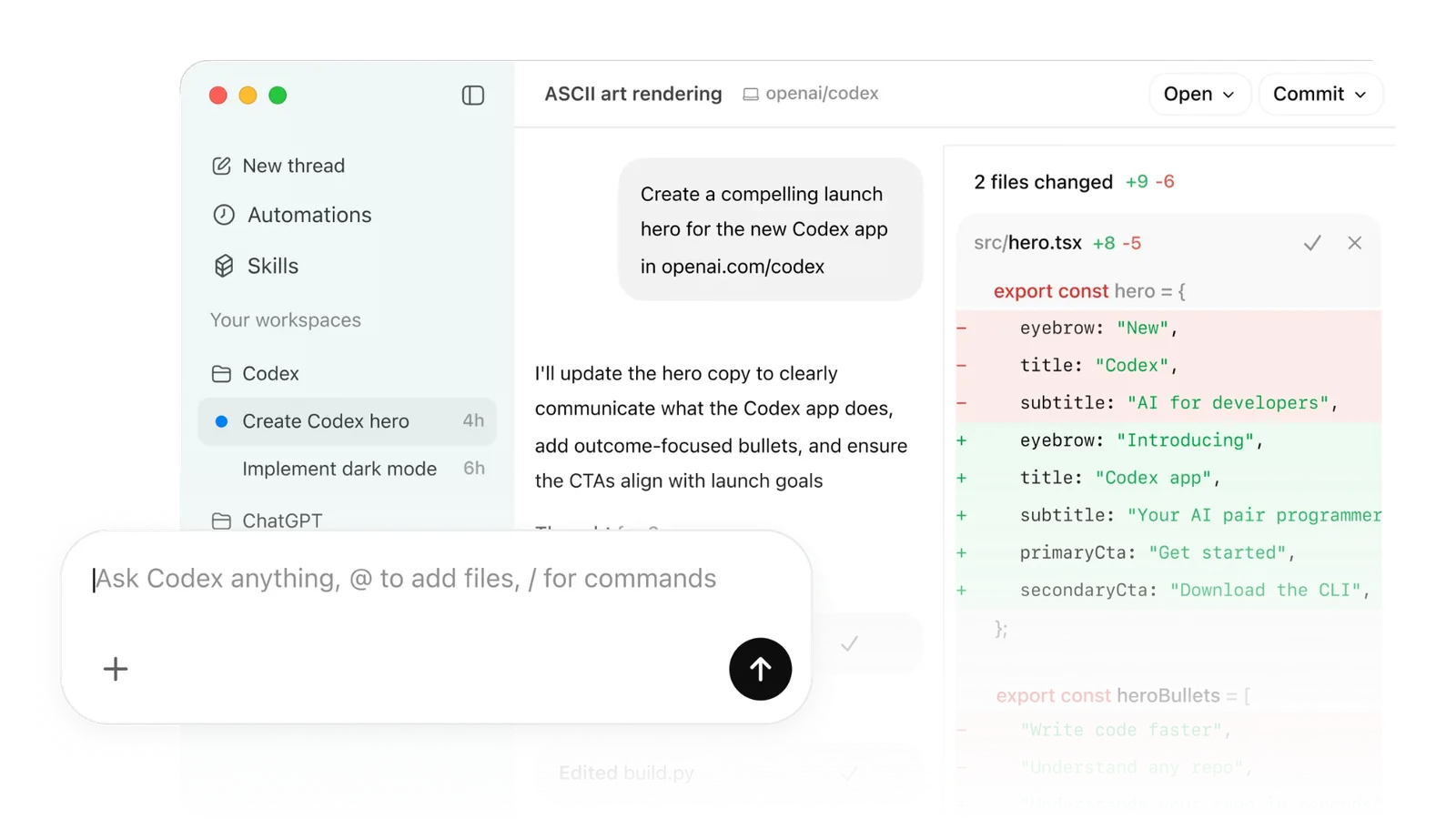

Four pillars of ChatGPT Work
Autonomy with a safety switch
ChatGPT Work plans steps and carries out the task on its own, but pauses on "risky" actions (saving a file, sending an email, a commit) and asks for your approval.
The scope of access is configurable
The agent works in a scoped environment: it sees what you give it. What that scope covers - files, apps, the network - depends on the surface, plugins, apps and the permissions granted. Check your own configuration before you build a process on it.
Project memory
It remembers the task context: files, decisions, previous steps. Come back an hour later - ChatGPT Work knows where you left off, no need to repeat instructions.
Works everywhere
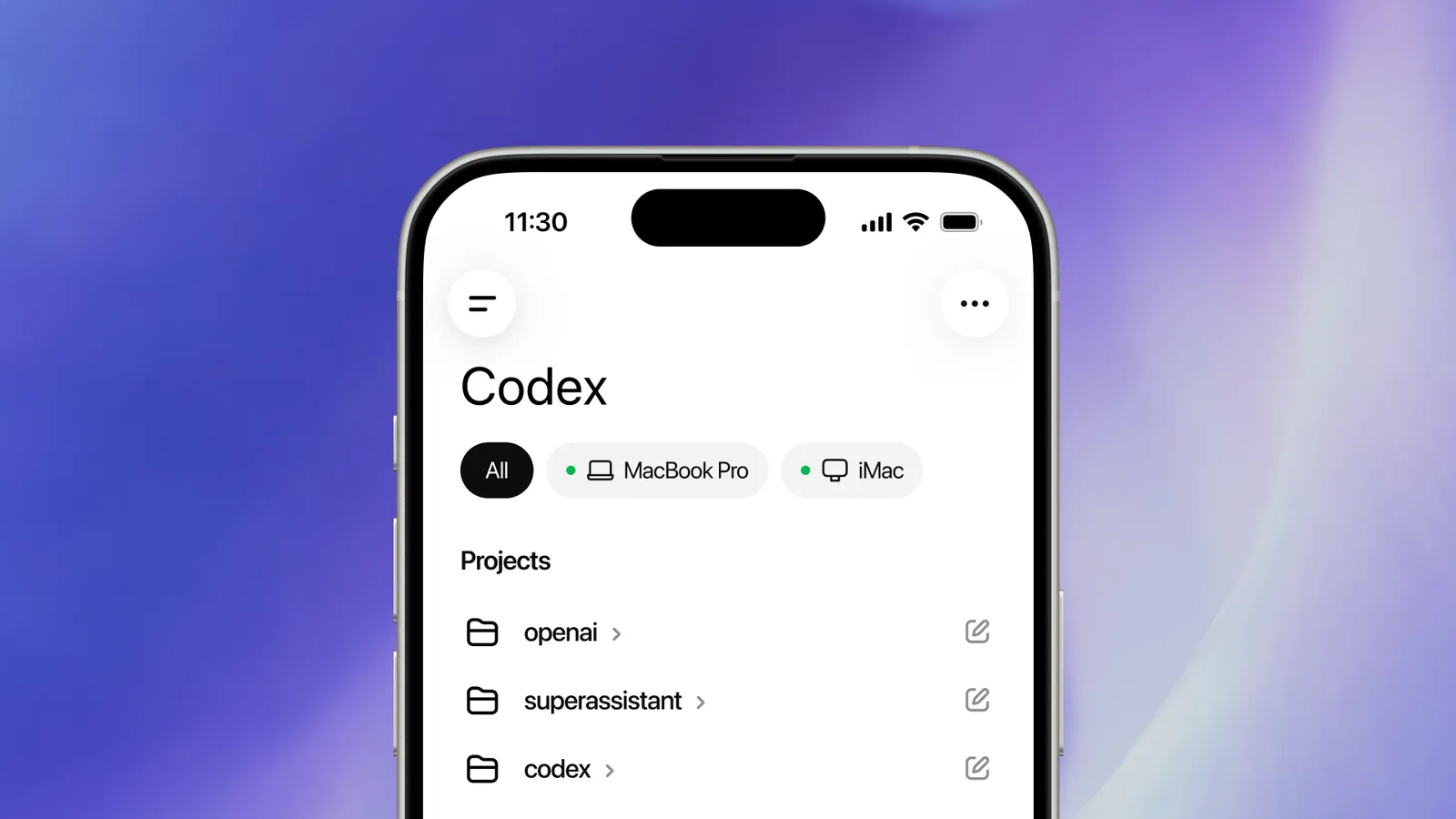
Web, desktop app, mobile, terminal (CLI), GitHub. Start a task on your laptop - continue on your phone on the way to a meeting.
name: weekly-sales-report
description: Weekly sales report

## Instructions
1. Fetch data from the HubSpot API - last 7 days
2. Aggregate: revenue, leads, conversion, average deal value
3. Generate 3 matplotlib charts -> PDF
4. Send a summary to Slack #sales
5. Save the PDF to Google Drive -> "Reports 2026" folder
This is not code. It's a natural-language instruction. You define what, ChatGPT Work decides how.
👉 Ready-made skills and app integrations are shown in lesson 09.
First: name things correctly
Chat, Work and Codex are three different jobs
Choose by the output: an answer to read, a finished deliverable or a change to code. The cards below compare the work involved.
Chat
Fast conversation and help
- Use for
- A question, rewriting text, explaining a concept, brainstorming
- Execution model
- Iterative prompt turns in one conversation - you drive, the model answers
- Duration
- Seconds to minutes, a single exchange
- What you get
- An answer in the chat window: text, a code snippet, a short draft
- Who checks quality
- You, by reading the answer
- Typical sentence
- "Write me three versions of this email"
Work
Long multi-step tasks and finished results
- Use for
- A process: gather data, analyze, produce a document, check it, hand it over for approval
- Execution model
- In the browser the task runs in a managed cloud environment; in the desktop app you can also choose local work if it is enabled. The agent works autonomously for 10-20+ minutes: research, verification, self-correction, artifact assembly
- Duration
- Usually 10-20+ minutes, many steps in a row, without you in the loop
- What you get
- A finished file: a slide deck (.pptx), a rich document with tables and checklists, a spreadsheet, an interactive web app
- Who checks quality
- The agent runs QA against your checklist, you approve
- Typical sentence
- "Prepare the monthly report from these three sources and stop before sending"
Codex
Development and technical tasks
- Use for
- Code, repositories, tests, refactoring, change reviews, engineering tasks
- Execution model
- Repository context, terminal/CLI access, diff generation and test execution
- Duration
- Minutes to hours, working on a repository
- What you get
- Production code, a Git pull request, tests that reproduce a bug, a fine-tuned plugin
- Who checks quality
- Tests, code review; the merge decision stays with a human
- Typical sentence
- "Add tests for this function and show me the changes before merging"
How to choose in 5 seconds
- Do you want an answer you will read and use yourself? → Chat
- Do you want a finished result you would otherwise assemble over an hour? → Work
- Does the task touch code or a repository? → Codex
About access to the internet and files
There is no single rule that "the agent has no internet" or "the agent cannot see files". The scope of access depends on the surface you use, on plugins and apps, and on the permissions you and your administrator granted. Before you rely on a workflow, check what this specific configuration can actually reach.
Availability depends on your plan, region, workspace and administrator configuration.
New in September 2026
Since 23 September 2026 voice also works in Work: dictate a task and you get a finished document, spreadsheet or presentation, and an unfinished voice task continues in text. Voice now supports plugins and connected apps, so you reach the same tools you use in a typed chat. In the ChatGPT desktop app, Voice is available on Plus, Pro, Business, Edu and Enterprise (Enterprise and Edu start with two weeks of early access) and uses your existing usage budget at 0.05 USD per minute, or 1.25 credits per minute on credit-based workspaces. The model doing the task is billed separately and Voice is not available with an API key (official docs, checked 18 October 2026).
Interactive - three levels
Prompt → Task → Workflow
The same problem - "I need last month's sales report" - handled at three levels of delegation. Click through them and see what moves off your plate at each step.
What you say
Write a summary of last month's sales based on these numbers: [PASTE]. Short, in bullets, for the sales director.
What the agent does
- Reads what you pasted
- Writes the summary
- Returns text in the chat window
What you get
A paragraph of text you still have to check, format and paste into the report.
Enough when you only need the wording and you are doing everything else anyway.
Still on you
- Pulling the data out of your systems
- Verifying the numbers
- Making the charts
- Assembling and sending the report
A plain prompt gives you an answer. A workflow defines how the whole task gets done.
More detailDetailed process and parallel workNine stages, a reusable template and guidance for several tasks. Use these after your first trial.
The core model of the course
Nine steps that turn a prompt into a delegated process
Related examples are in lesson 14 and the library in lesson 15. Use the stages as a checklist; a short task does not need nine separate headings.
- 01
GOAL
The result by which you will know the task is finished. Not a topic - an outcome.
What exactly should be on the table when the agent finishes?
Owner: Human
- 02
CONTEXT
Who reads it, why, in what company situation. Without it you get a correct, useless answer.
Who is the audience and what decision do they need to make?
Owner: Human
- 03
SOURCES
Files, apps, pages and systems it may use. And the ones it may not.
Where should the data come from and what is off limits?
Owner: Human
- 04
EXPECTED OUTPUT
Format: report, table, deck, sheet, message. Length, structure, language.
In what form do you want it and how long should it be?
Owner: Human
- 05
CONSTRAINTS
What is forbidden: inventing numbers, sending mail, deleting files, using personal data.
What happens if the agent crosses a line - and where is that line?
Owner: Human
- 06
PLAN
The agent lays out the steps before doing anything. You read the plan and fix it while fixing is cheap.
Will this plan actually reach the goal from step 01?
Owner: Agent proposes, human approves
- 07
EXECUTION
The agent works through the plan and stops at the checkpoints you agreed on.
Where should the agent stop and show its work?
Owner: Agent
- 08
QA
Checking the result against a list you wrote: sources, totals, contradictions, gaps.
How would you spot a bad result - and did the agent check for it?
Owner: Agent reports, human verifies
- 09
APPROVAL
A human decision. Only after it does anything get written, sent, purchased or deleted.
Who puts their name on this result?
Owner: Human
Reusable template
Framework as a ready prompt
GOAL
[What result should exist - describe the outcome, not the topic]

CONTEXT
[Who reads it, why, what decision follows]

SOURCES
[Files, apps, pages, systems - and what must NOT be used]

EXPECTED OUTPUT
[Format, length, structure, language]

CONSTRAINTS
[What is forbidden: inventing numbers, sending, deleting, exposing personal data]

PLAN
Before doing anything, lay out the plan and stop for my approval.

EXECUTION
Work through the plan step by step. Stop at: [LIST YOUR CHECKPOINTS].

QA
Before showing the result, check: [CHECKLIST] and report what does not add up.

APPROVAL
Do not write, send, purchase or delete anything without my explicit "OK".
Availability depends on your plan, region, workspace and administrator configuration.
The main shift
Delegate a result, not a single prompt
Delegating a prompt
"Write me a summary of this data." You still own the process: pulling the data, checking it, formatting, sending. The agent produced one artifact in the middle of your work.
Delegating a result
"By Friday I need a monthly report in this shape, from these sources, checked against this list, and stopped before sending." The agent owns the process. You own the goal, the boundaries and the decision.
The nine steps you delegate
Multi-step tasks
One instruction, six steps
A Work task is not a longer prompt. It is a sequence in which each step uses the output of the previous one - and you can interrupt it at any point.
- 1Collect
Read the files, the sheet and the mailbox thread you pointed to.
- 2Understand
Describe what the data supports and what is missing - before computing anything.
- 3Plan
Lay out the steps and stop for approval.
- 4Do
Compute, write, build the document.
- 5Check
Run the QA list and report what does not add up.
- 6Hand over
Present the result and wait for a decision.
Working with files and apps
- Files you upload - documents, spreadsheets, PDFs and exports the agent reads, analyzes and turns into a result.
- Connected apps - mail, drive, calendar, CRM or a knowledge base, once your workspace has the connection and you granted the permission.
- The web - public pages, when browsing is available in the surface you are using.
There is no universal answer to "can it reach the internet or my files". The scope depends on the surface, plugins, apps and the permissions granted - check your own configuration.
Availability depends on your plan, region, workspace and administrator configuration.
Checkpoints and approvals
A checkpoint is a place where the agent stops and shows its work. An approval is your decision to let it continue. Put a checkpoint wherever a mistake would be expensive to undo.
- After the plan - before any work starts.
- Before writing to a company file or system.
- Before anything leaves the company.
- Before a purchase, a deletion or an irreversible change.
Every action outside the chat
- READthe agent reads
- DRAFTprepares a draft
- REVIEWyou review it
- APPROVEyou approve
- WRITE / SENDonly now it writes or sends
QA - checking the result before you trust it
QA is not "read it carefully". It is a short list of questions you hand to the agent, and the agent answers them before showing the result. A self-check is not a guarantee: whatever it cannot confirm, it must flag, and you verify the key numbers yourself.
Does every number name the file and place it came from?
Do the parts sum to the whole?
Is any claim based on data that was never provided?
Do any two statements in the result contradict each other?
What is missing for this result to be complete?
Before using the result, compare the key numbers and sources with the input documents. A checking section alone does not guarantee correctness.
Reusable workflows
The moment a task comes back for the third time, stop writing it from scratch. Save it as a workflow: a fixed set of nine sections you only adjust at the edges. The value is not speed - it is that the result comes out the same way every time, so it can be compared.
Once
You write the workflow and run it under supervision.
Twice
You fix what the QA section caught and freeze the structure.
Then
You only change inputs - the process stays identical.
End to end
One complete workflow, step by step
Monday morning: the CRM export lands in the drive, the client wants an offer summary by noon.
Your workone plan review, one sentence fixed, one decision to send
More detailData analysis in WorkA spreadsheet example for when you need analysis rather than a summary.
Data agent in ChatGPT Work
Ask your company data in plain language
The skill is not clicking. It is asking a question precise enough that the answer means something - and checking the definition before you act on it.
Connected sources
The agent works on company data: data warehouses and files in Google Drive or SharePoint. Nothing is copied by hand - it queries the source it can see.
The administrator chooses sources and roles. You do not connect anything "just to check".
Metric definitions
The agent uses the semantic layer: ready-made metric definitions, business terms and relationships. That is why "sales" means the same in your question and in the board report.
Always ask which definition it used. Two definitions give two different numbers.
Evidence, not just a number
The answer arrives with evidence: where the number came from, for which period, with which filters. Without it you cannot tell a result from a mistake.
The rule: a number without a definition and a source is not a result.
A dashboard instead of an answer
The result can be saved as an interactive dashboard: editable, shareable and refreshable. Once built, the view keeps working without you.
Before sharing, check the definitions and the date range on the view.
Four questions you can ask this week
Each prompt is built the same way: question, scope, evidence, and a stop point before anything is sent further.
Why sales dropped
From a business question to a number with a definition and a source.
Investigate why sales in [PERIOD] dropped versus [PREVIOUS PERIOD]. Give the value in both periods, the definition of the metric used, the data source and the assumptions made. Break the change down by at least 3 dimensions (e.g. region, category, channel). List cause hypotheses clearly marked as hypotheses, and state which additional data would confirm each. Do not guess - if something is not in the data, say so.
Customers at risk of churn
A segment to act on this week - driven by a criterion, not a hunch.
Select customers matching the churn-risk criterion: [CRITERION, e.g. no order for X days and a Y% drop in value]. For each give: name, historical value, last activity date, and which criterion triggered. Sort by value. Ask me about the threshold if the criterion returns fewer than 5 or more than 50 records. Finish with the definition of the criterion used and the source.
A Monday management dashboard
A repeatable view that refreshes itself - no manual spreadsheet work.
Build a management dashboard from [SOURCE]. Sections: (1) revenue and margin - current period, previous period and target, (2) top 5 deviations with the customer or product name, (3) 3 decisions to make with owner and due date. Every number with its metric definition and visible date range. Add a short note on how to refresh the data. Show the section structure first and STOP.
Auditing a single number
Before a number goes to the board - check you know what it counts.
I have the number [VALUE] for [METRIC] over [PERIOD]. Before I use it, check: (1) the metric definition, (2) the source and table, (3) the filters and exclusions applied, (4) whether the period is complete, (5) whether the same source has a report showing a different value. List the differences and state clearly what cannot be confirmed from the available data. Do not silently fix the number - show both versions.
Availability depends on your plan, region, workspace and administrator configuration.
Before you use the number
Five checks that separate
a result from a number
01
Metric definition
Net or gross? With tax, returns, discounts?
02
Source and table
Which system and which table does the number come from?
03
Filters and exclusions
Which regions, channels and statuses were dropped along the way?
04
Period completeness
Has the latest data landed yet? An incomplete month understates the result.
05
A second version
If the company report differs - show both versions, do not silently pick one.
The agent does not bypass permissions: table, row and column limits stay exactly as they are, and the administrator decides which sources and roles are available. On our training we never connect real company data or a client account - we work on a demo, sample data or a screenshot.
Source: openai.com/index/put-data-to-work (10 Sep 2026)
More detailChatGPT Space screenA separate guide to the team space and the availability recorded in the course.
Work S1 - Space and Pages
ChatGPT Space - a shared workspace with Pages
In short ↳Announced at DevDay on 29 Sep 2026. Space is where you and your team work with ChatGPT on Pages - interactive documents with charts, checklists and images. Pro, Business and Enterprise, desktop and web; mobile is view-only for now.
Select the screenshot to enlarge it.
What you see on screen
- 1
New page / All / Pages / Sites
The Space sidebar. Pages are documents, Sites are small web pages and apps. Instead of folders you nest pages inside pages.
- 2
More menu (…)
Projects, Sites, Maps, GPTs, Code Review, Media Library and plugin apps such as Adobe, Figma and Canva. Pin the ones you use every day.
- 3
The page itself
A writing and building surface. Type / to add headings, images, checklists and tables.
- 4
@ChatGPT in the text
Type @ChatGPT followed by a request and it jumps in to help right in the page - you do not switch to a separate chat.
- 5
Share
Share the finished page with teammates and discuss it in comments. Team Tasks and the Slack/Teams connection are for Business and Enterprise.
How to use it - in plain words
Start with the built-in guide page. Tick the Getting started checklist (bottom left, 0 of 6) - it walks you through /, @ChatGPT, nesting pages and sharing in a few minutes.
Rule of thumb: Chat answers, Work carries out a task, Space keeps the result alive. Put the recurring team document (weekly report, client brief) on a page and let it update from connected sources instead of pasting exports again.
Check who can see a page before you share it. Do not put data on a page that your organisation does not allow in ChatGPT.
For advanced users: example prompt+
@ChatGPT Turn this page into a weekly team report.
Add a table: project, status, owner, next step.
Add a checklist of open decisions and mark the ones older than 7 days.
Do not invent numbers - if a value is missing, write "missing".